Showing posts with label Alerts. Show all posts

Alerts In Oracle Apps

Oracle Alert

What are Oracle Alerts?
Oracle Alerts monitor your Database information and notify you when the condition that you have specified is found. You can define Alerts in any Oracle application or custom Oracle application. Some applications (Purchasing, for example) supply Alerts that Can simply be activated and used. There are two type of Alerts, Event and Periodic.

Alerts are 2 types of alerts in oracle apps.
1. Periodic Alerts
2. Event based Alerts.

Event Based Alerts: 
These Alerts are fired/triggered based on some change in data in the database.

Periodic Alert:
These Alerts are triggered hourly,daily, weekly, monthly or yearly based on your input.

EX: Employee Birthday can be any calendar day of the year. So we will tell oracle apps 
to check daily once every calender day and see if today is employee's birthday and send email if true.

You need Alert Manager Responsibility to define a new Alert.
Navigate:
Alert Manager -> Alert -> Define

We need to write SQL which satisfies our condition and also to fetch required details.

SELECT global_name, 
               date_of_birth,
               email_address into &emp_name,
               &dob, 
               &emp_email
FROM    per_all_people_f
WHERE trunc(sysdate) between effective_start_date and effective_end_date
     AND to_char(to_date(date_of_birth),'dd') = to_char(to_date(sysdate),'dd')
     AND to_char(to_date(date_of_birth),'mm') = to_char(to_date(sysdate),'mm');

Note:
  • Your periodic alert Select statement must include an INTO clause that contains one output for each column selected by your Select statement.
  •  Identify any inputs with a colon before the name, for example, :INPUT_NAME.
  • Identify any outputs with an ampersand (&) before the name, for example, &OUTPUT_NAME.
  • Do not use set operators in your Select statement.
  • You can use PL/SQL functions in your Select statement to fetch complex business logic.


  • §  Enter the name of the application that will own the alert
    §  Enter a suitable Name of the alert (up to 50 characters), and 
        give it a meaningful description (up to 240 characters).
    §  Select a frequency for your periodic alert. You can choose from nine frequency options:
    1.    On Demand
    2.    On Day of the Month
    3.    On Day of the Week
    4.    Every N Calendar Days
    5.    Every Day
    6.    Every Other Day
    7.    Every N Business Days
    8.    Every Business Day
    9.    Every Other Business Day

    §  Choose ‘On Demand’ frequency when you are developing a periodic alert so that you can test your alert at any time you want. When you will sure that the alert is working fine, then you can change the frequency as per business need.
    §  Depending on the frequency you choose in the previous step, the Start Time and End Time fields become enabled.  You may also specify the number of times within a 24-hour period that Oracle Alert checks your alert.
    §  Specify a value in the Keep _ Days field to indicate the number of days of exceptions, actions, and response actions history you want to keep for this alert.
    §  Specify a value in the End Date field if you want to disable your alert by a certain date.
    §  Enter a SQL Select statement that retrieves all the data your alert needs to perform the actions you plan to define.
Check the SQL for syntax using "verify" button.

If any row that matches condition, it is called exception in Alert.
So when you click "run" button, it will display the number of exceptions occurred.


Next step is to define action if condition matches.
Don't forget to select action level of type "Detail". 
This is because action should be performed once for every Alert Exception.


Then click on "Action Details" button and define the email message as shown below.


We also need "Action Sets" and attach the action which we just created.


Now we have to test this Alert:

Go to Alert Manager -> Request -> Check, and schedule the Alert to run it sometime after current time.
It will submit a concurrent program. [In this example CP Name is "Birthday Wishes E-mail Alert (Check Periodic Alert)"]
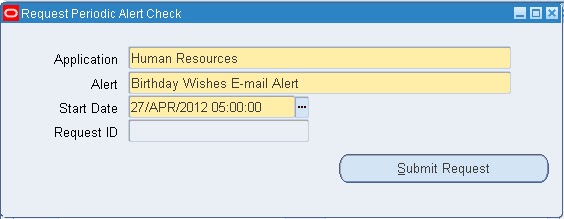


Once concurrent program is successfully ran, we can verify the number of exception from
Alert Manager -> History and query for alert.


Oracle Forms for User Response in Alert

First Define the Alert in Form:


Query: Alert can be used in Oracle Forms for user response.
   
     DECLARE
       al_id Alert;
       al_button NUMBER;
    BEGIN
         al_id := Find_Alert('');
      
         al_button := Show_Alert(al_id);
      
         IF al_button = ALERT_BUTTON1 THEN    -- Here Alert_button1 value is OK
                   <<    Condition >>
          null;
         ELSE
                   <<   Condition  >>
           RAISE Form_trigger_Failure;
         END IF;
    END;


ALERTS Interview Questions and Answers in Oracle Apps

1.    What are Oracle Alerts?
Oracle Alerts are used to monitor unusual or critical activity within a designated database. The flexibility of ALERTS allows a database administrator the ability to monitor activities from table space sizing to activities associated with particular applications. Alerts can be created to monitor a process in the database and to notify a specific individual of the status of the process.

2.    What are the different types of alerts, Define it?
You can define one of two types of alerts: an event alert or a periodic alert.
Event alert: An event alert immediately notifies you of activity in your database as it occurs.
Periodic alert: A periodic alert, on the other hand, checks the database for information according to a Schedule  you define.

3.    What are the different business uses of Alerts?
a) Keep you informed of critical activity in your database
b) Deliver key information from your applications, in the format  you choose to provide you with regular reports on your database information
c) Automate system maintenance and routine online tasks Information about exception conditions.

4.    What can be done with Alerts?
·         You can send notifications
·         You can send log files as attachments to notifications
·         You can call PL/SQL stored procedures.
·         You can send approval emails and get the results.
·         Print some content dynamically

5.    What types of actions can be generated when an Alert is triggered?
When an alert is executed, the alert can send an email message, run a concurrent program, run an operating system script, or run a SQL statement script. Using response processing, Oracle Alerts can solicit a response from a specific individual and perform an action based on the response that it receives.

6.    What is On-Demand periodic alert?
It is a periodic alert with frequency as ‘On-Demand’. That means there is no specific period assigned to this alert and you can run this alert at any time you want using Request Periodic Alert Check form.

7.    What database events can cause what actions?
An insert and/or an update to a specific database table

8.    What actions can you perform in an alert?
An action can entail sending someone an electronic mail message, running a concurrent program, running an operating script, or running a SQL statement script. You include all the actions you want Oracle Alert to perform, in an action set.

9.    How event alert works?
When you define an event alert to monitor a table for inserts and/or updates, any insert or update to the table will trigger the event alert. When an insert or update to an event table occurs, Oracle Alert submits to the concurrent manager, a request to run a concurrent program called Check Event Alert. The concurrent manager runs this request according to its priority in the concurrent queue. When the request is run, Check Event Alert executes the alert Select statement. If the Select statement finds exceptions, Check Event Alert performs the actions defined in the enabled action set for the alert. If the Select statement does not find any exceptions, Check Event Alert performs the No Exception actions in the enabled action set for the alert.

10.  What do you specify when creating a Periodic Alert?
a. A SQL Select statement that retrieves specific database information
b. The frequency that you want the periodic alert to run the SQL statement
c. Actions that you want Oracle Alert to perform once it runs the SQL statement.

11. Can you define Alert on Oracle Applications Tables?
Yes

12. What is Periodic Set?
You can create a set of periodic alerts that Oracle Alert checks simultaneously. Use the Request Periodic Alert Check window to check the periodic set. Note that each periodic alert you include in a periodic set continues to run according to its individually defined frequency.

  13. How alert is different from database triggers?
a) Code can be modified and viewed in a screen
b) Periodic alert is not possible through Database trigger
c) Oracle Alert will also transfer your entire alert definition across databases. You can instantly leverage the work done in one area to all your systems.
d) Customizable Alert Frequency with Oracle Alert, you can choose the frequencyof each periodic alert. You may want to check some alerts every day, some only once a month, still others only when you explicitly request them.

  14.  What is Action Set?
An action set can include an unlimited number of actions and any combination of actions and action groups for your alert. You can define as many action sets as you want for each alert. Oracle Alert executes the alert Select statement once for each action set you define. During each action set check, Oracle Alert executes each action set member in the sequence you specify.

  15. Can you define detailed or summary actions in alert?
Yes, Detail or Summary Actions you can choose to have Oracle Alert perform actions based on a single exception or a combination of exceptions found in your database.

  16. What is Distribution List in Oracle Alert?
Distribution lists let you predefine a set of message recipients for use on many actions. If a recipient changes, you need only adjust it in the distribution list, not in the individual message actions.

  17.  Can you specify History Maintenance?
      Alert History Oracle Alert can keep a record of the actions it takes and the exceptions it finds in your database, for as many days as you specify.

  18. Can you perform actions when NO exceptions are found?
No Exception Actions : Oracle Alert can perform actions if it finds no exceptions in your database, same as alert actions.

  19. What are the Action Levels for your alert actions?
There are three types of level for your action: Detail, Summary and No Exception.
During an alert check, a detail action performs once for each individual exception found, a summary action performs once for all exceptions found, and a no exception action performs when no exceptions are found.


Alerts in Oracle Application

Oracle Alert facilitates the flow of information within your organization by letting you create entities called alerts to monitor your business information and to notify you of the information you want.
Two types of alerts:
     1.    Event alert
     2.    Periodic alert.

Event Alert:
These Alerts are fired/triggered based on some change in data in the database.
Ex: If you want to notify your manager when you create an item in the inventory you can use Event based alerts. When you create an item in the inventory it will create a new record in mtl_system_items_b, here inserting a record in the table is an event so whenever a new record is inserted it will send the alert. In same alert you can also send the information related to that particular item.

Periodic Alert:
Ex: If you want to know list of items created on that day at the end of day you can use periodic alerts repeating periodically by single day. This alert is not based on any changes to database. This alert will notify you everyday regardless of data exists or not that means even if no items are created you will get a blank notification.

Navigation in Oracle Apps to define an alert:
Go to “Alert Manager” Responsibility
Alert >> Define


How to define a periodic alert:
  1. Go to Alert Manager > Alert > Define.
  2. Select the ‘Periodic’ Tab.
  3. Enter the name of the application that owns the alert in the Application field.
  4. Name the alert (up to 50 characters), and give it a meaningful description (up to 240 characters).
  5. Check Enabled to enable your periodic alert.
  6. Set the frequency for the periodic alert to any of the following:
  • On Demand
  • On Day of the Month
  • On Day of the Week
  • Every N Calendar Days
  • Every Day
  • Every Other Day
  • Every N Business Days
  • Every Business Day
  • Every Other Business Day
Enter a SQL Select statement that retrieves all the data your alert needs to perform the actions you plan to define. Your periodic alert Select statement must include an INTO clause that contains one output for each column selected by your Select statement.


Here is an example of a periodic alert Select statement that looks for users who have not changed their passwords within the number of days specified by the value in: THRESHOLD_DAYS

SELECT user_name,
password_date,
:THRESHOLD_DAYS
INTO &USER,
&LASTDATE,
&NUMDAYS
FROM fnd_user
WHERE sysdate = NVL(password_date,
sysdate) + :THRESHOLD_DAYS
ORDER BY user_name

Although Oracle Alert does not support PL/SQL statements as the alert SQL statement definition, you can create a PL/SQL packaged function that contains PL/SQL logic and enter a SQL Select statement that calls that packaged function.
You can verify the accuracy and effectiveness of your Select statement. Choose Verify to parse your Select statement and display the result in a Note window.
Choose Run to execute the Select statement in one of your application’s Oracle IDs, and display the number of rows returned in a Note window.
Once you are satisfied with the SQL statement, save your work.

Specifying Alert Details:

Once you define an event or periodic alert in the Alerts window, you need to display to the Alert Details window to complete the alert definition. The Alert Details window includes information such as which Application installations you want the alert to run against, what default values you want your inputs variables to use, and what additional characteristics you want your output variables to have.


Creating Alert Actions:
After you define your alert you need to create the actions you want your alert to perform. There are four types of actions you can create:
• Message actions
• Concurrent program actions
• operating script actions
• SQL statement script actions
Choose Actions
Enter a name (up to 80 characters) and description (up to 240 characters) for your alert action.
Select a level for your action: Detail, Summary, or No Exception.
Choose Action Details to display the Action Details window.

Select the type of action you want to create in the Action Type field


Creating an Event Alert:
Specify the name of the application and the database table that you want Oracle Alert to monitor.
Note: You cannot use a view as the event table for your alert.
Check After Insert and/or After Update if you want to run your event alert when an application user inserts and/or updates a row in the database table.
Specify a value in the Keep _ Days field to indicate the number of days of exceptions, actions, and response actions history you want to keep for this alert.
Specify a value in the End Date field if you want to disable your alert by a certain date.

Important Alert Tables:
  • ALR_ALERTS
  • ALR_ACTIONS
  • ALR_ACTION_SETS
  • ALR_ACTION_SET_INPUTS
  • ALR_ACTION_SET_OUTPUTS
  • ALR_ACTION_SET_MEMBERS
  • ALR_ALERT_CHECKS
  • ALR_ALERT_INPUTS
  • ALR_ALERT_OUTPUTS
  • ALR_ACTION_SET_CHECKS
  • ALR_RESPONSE_SETS
  • ALR_RESPONSE_ACTIONS
  • ALR_VALID_RESONSES
Oracle Alert uses the following internal views:
  •  ALR_ALERT_ACTIONS_VIEW
  •  ALR_ALERT_HISTORY_VIEW
  •  ALR_CHECK_ACTION_HISTORY_VIEW
  •  ALR_INSTALLATIONS_VIEW
  •  ALR_PERIODIC_ALERTS_VIEW
  •  ALR_RESPONSE_ACTIONS_VIEW
  •  ALR_SCHEDULED_PROGRAMS
  •  ALR_VARIABLES_AND_OUTPUTS
For complete details you can refer Oracle Alert User’s Guide

Transfer Alert from one instance/database to other:
Go to “Alert Manager” Responsibility
Alert >> Define
Go to “Tools” Menu on top
Click on “Transfer Alert”

Enter source and destination fields and click Transfer.


How to find all cancel Requisitions

SELECT prha . *   FROM po_Requisition_headers_all prha , po_action_history pah   WHERE      1 = 1        AND pah . object_id ...